
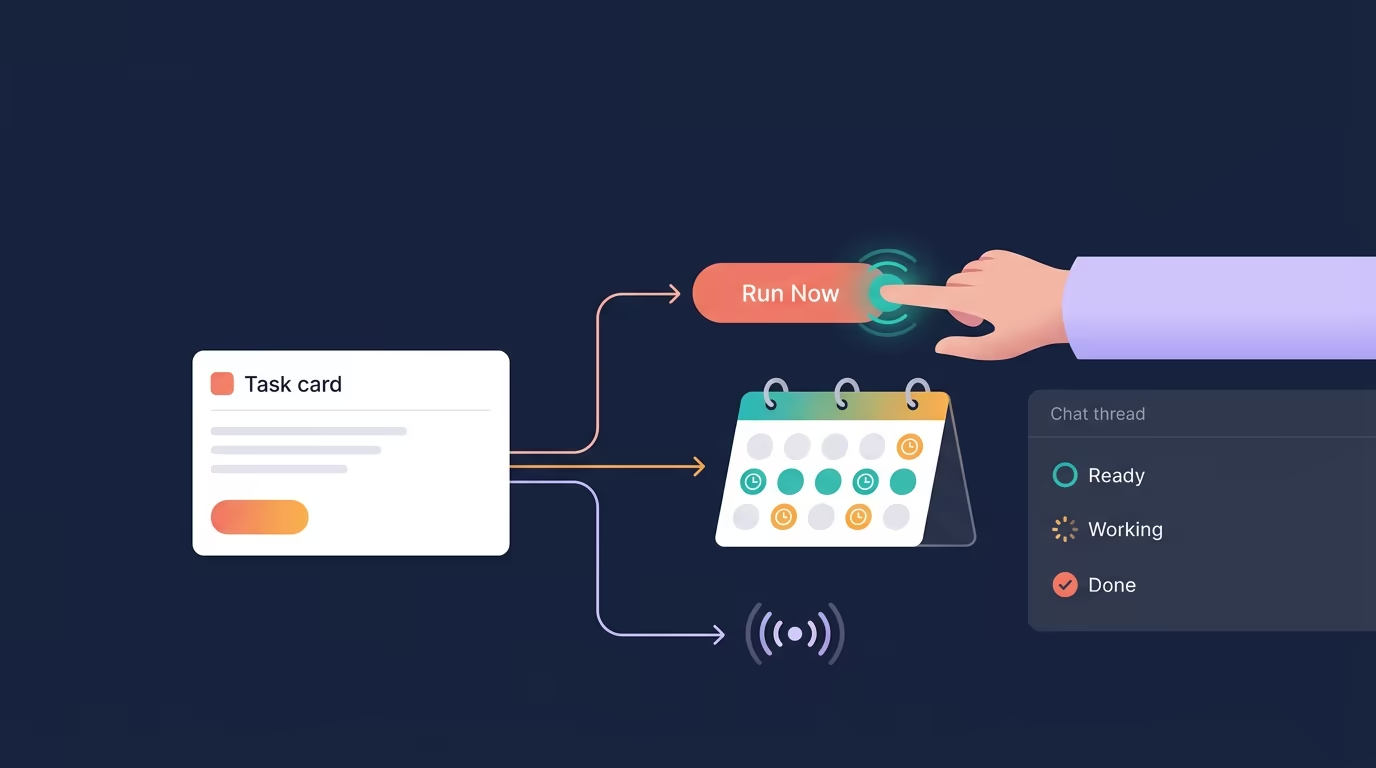
A task can sit in a list waiting for attention, or it can start work when the right moment arrives. Tarsk project task automations let you run a task now or schedule it for later.
That gives you a practical way to move recurring and reactive work out of your head. Write the instruction once, add the conditions for running it, then inspect the thread Tarsk creates when the task fires.
Start with a durable task
A Tarsk task holds the instruction, its current status, and the conversation where the agent works. Write the task as a brief for the agent rather than a reminder for yourself.
A useful task description includes:
- The outcome you want
- The files, project area, or service the agent should inspect
- Constraints it should follow
- Checks that define a successful result
- The person or team that should review the result
For example:
Check the latest production deployment, run the smoke tests, summarize the results, and flag any failure with the affected service and log excerpt.
You can implement a task in a new thread or in the current thread. When Tarsk starts an automated task, it opens a new thread so the run has a focused place for its instructions and results.
Run a task when you choose
Run Now gives you an immediate test and execution path for an automated task. Open a scheduled task, choose Run Now, and Tarsk starts it without waiting for its next trigger.
This helps in two situations:
- You want to test a new automation before relying on it.
- You need the work now because the normal schedule is too far away.
Run Now also works for a paused automation. That lets you keep a schedule paused while running a one-off check. A one-shot schedule gets consumed when you run it, so schedule it again if you need another run. A repeating schedule stays in place.
Tarsk does not start a task that already has a working run or a Done status. Inspect the linked thread for the agent’s output. A successful launch means Tarsk started the thread and sent the task instruction. It does not certify that the requested work passed its checks.
Choose a schedule
Tarsk supports two kinds of automatic starts.
Schedules for predictable work
Use a one-time schedule for a specific date and time. Use a repeating schedule for work that follows a rhythm:
- Daily checks
- Weekday reports
- Weekly maintenance
Tarsk uses the timezone shown in the task form. Tarsk displays the next run for recurring tasks. The scheduler checks for due work at regular intervals, so treat the selected time as a start window rather than a precise second.
A nightly maintenance task might say:
Review open dependency updates, group them by risk, and prepare a summary for tomorrow’s engineering review. Do not change dependencies.
Keep task state visible
The Tasks view gives each task a clear working state:
- Ready means the task can be started.
- Working means an agent is working in its linked thread.
- Done means the task has been closed.
You can mark a task Done after you review the result. Done tasks leave the active list, which keeps recurring work and unfinished requests easy to find.
Tarsk refreshes task data when you open the Tasks view or use its Refresh control. Agent changes can also prompt the list to update while it is open. While a task runs, Tarsk checks its working state more often so the view reflects completion without requiring a manual reload.
The task list shows the latest launch result, not a complete history of every run. Open the linked thread when you need the actual output, decisions, or test results.
Find work by reference
Ticket-like references work well inside task titles and descriptions. Include an identifier such as OC-2 when you create the task, then ask Tarsk to find OC-2 when you need to inspect or run it.
If one task matches, Tarsk can update it, implement it, or run it by reference. If several tasks contain the same reference, Tarsk asks you to choose the exact task. The reference acts as a naming convention, not as a live connection to an issue tracker.
The Tasks view remains a flat list with tag filtering. Use tags for broad grouping, and use a reference in the description when you expect the agent to retrieve a particular piece of work later.
A workflow for individuals and teams
You can build a useful automation in a few minutes:
- Create a task with a concrete outcome and review criteria.
- Choose a one-time or repeating schedule.
- Leave it enabled, or pause it while you refine the instruction.
- Choose Run Now to test the task.
- Review the new thread and update the description with anything the run missed.
- Keep the task active, or mark it Done when the work no longer applies.
For personal work, this fits daily project checks, release-note preparation, and weekly maintenance. For teams, scheduled tasks can prepare reports or maintenance summaries before a recurring meeting. Write the task description so the agent knows what it may change and what requires review.
Automations start agent work. They do not replace review. A task can report that its launch succeeded while the underlying request still needs your judgment, testing, or approval.
Put your next recurring task on a schedule
Project task automations let you start a task yourself or let a schedule start it. The task description supplies the context, and the linked thread gives you a record of the work.
- Write acceptance criteria into every automated task.
- Use Run Now before relying on a new schedule.
- Open the linked thread to verify the result.
Create a task in Tarsk, choose a schedule that fits the work, and let the next run prove the instruction.