
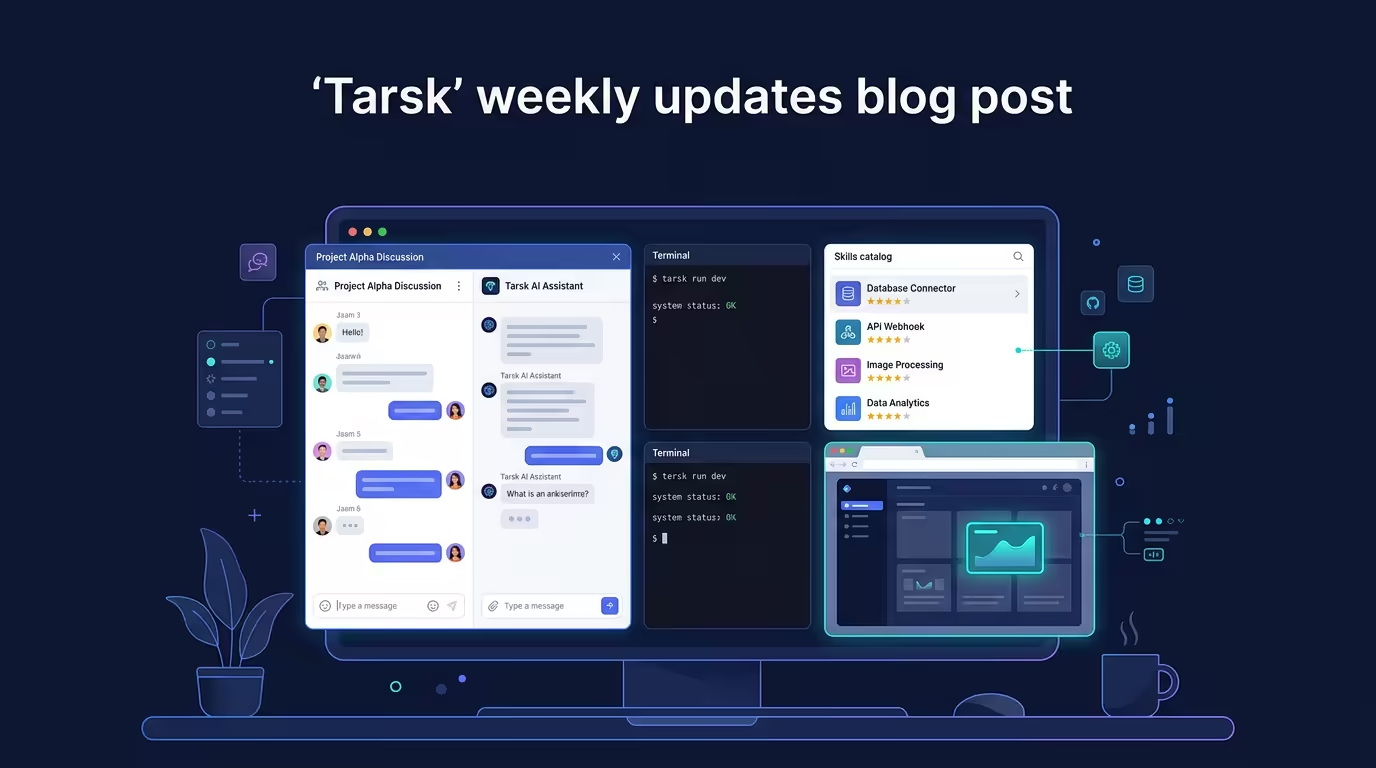
Tarsk got a bigger upgrade this week than a normal changelog can show. You can now work in two chats at once, install skills with less friction, stay inside the app for terminal work, and point at page elements in browser preview instead of describing them by hand.
These Tarsk updates change daily workflow more than they change menus. Here are the biggest user-facing additions from the last week, ordered by impact.
Work in two chats at once
Dual chat is the biggest change in this release.
You can now keep two conversations open side by side and use each one for a different job. That opens up workflows that used to feel awkward in a single thread.
- Plan in one pane and implement in the other.
- Compare two approaches without losing either line of thought.
- Keep research open while you write or edit.
- Split high-level direction from hands-on execution.
This matters because the cost of switching context adds up. When both conversations stay visible, you spend less time reopening threads and less time rebuilding your train of thought.
If you spend long stretches in Tarsk, this is the feature you will notice first.
Install and manage skills with less friction
The new skills flow is one of the most useful additions for people who want Tarsk to do more than the default setup.
You can now browse skill sources, preview installs, sort sources, add custom sources, and install skills from supported sources with a clearer flow inside the app.
That makes a difference for two reasons.
- You can discover useful skills faster.
- You get more confidence before installing something new.
Skills extend what Tarsk can do. This update makes that expansion path easier to trust and easier to use.
Use the terminal without leaving Tarsk
Tarsk now includes a built-in terminal.
That sounds simple. In practice, it changes how often you need to leave the app. You can run commands, inspect output, and follow terminal links without bouncing to a separate window.
For people who move between chat, files, tasks, and shell work, this closes a gap in the workflow. Tarsk feels more like a complete workspace and less like one part of a larger tool chain.
Select page elements directly in browser preview
Browser preview now includes visual element selection.
Instead of describing a button, panel, or block of content from memory, you can point at the exact element in the preview. Tarsk also added clearer overlays and labels so selection feels easier to trust.
This helps in the moments where precision matters.
- Referencing a specific part of a UI.
- Giving instructions based on something visible on the page.
- Reducing ambiguity in browser-driven tasks.
It is a small interaction change with a big effect. You see something, select it, and move on.
Voice input keeps getting faster
Voice input also got better this week.
The app already moved toward faster streaming speech input, and the latest work improves session handling and gives you better control over replacement behavior. The result is a voice workflow that feels more usable for real work, not just quick experiments.
If you think through prompts out loud, or if typing slows you down when you are in the middle of a task, this matters. You can speak, see text appear faster, and keep momentum.
Tasks fit projects better now
Task workflows got more useful across the app.
Tarsk improved how tasks connect to projects and threads, which makes them easier to use as part of ongoing work instead of a detached list. You can jump from a task into the relevant thread, implement a task in the selected thread, and carry more context forward when you create work from an active conversation.
That shift makes tasks feel closer to project management and less like reminders.
Smaller upgrades that still improve daily use
A few other additions deserve a quick callout because they remove friction from common workflows.
- File change blocks now show added and removed line counts.
- The file explorer got refresh and create actions.
- You can copy file references from the tree context menu.
- Project settings now include disabled tools.
- Project settings also support model aliases.
- Settings show clearer MCP server management controls.
- Keyboard shortcuts make repeated actions faster across the app.
None of these changes needs a long explanation. You feel them when the app asks for fewer extra steps.
Fixes that made the app feel better
This week also shipped a strong batch of fixes. They do not lead the headline, but they shape how solid Tarsk feels after a full day of use.
Notable fixes include:
- Diff view now refreshes git status after you revert a file.
- Browser selection overlay now clears when the prompt closes or you navigate away.
- Queued chat sends survive pane re-renders more reliably.
- Custom answers in ask-user blocks submit correctly.
- The welcome screen keeps its layout more consistently.
- Pull request button spinners now match the real state more closely.
- Sidebar status dots and preview error states are clearer.
- Branch and pull request flows handle edge cases more safely.
These are the changes that keep a tool from feeling fragile. You may not remember each one on its own, but together they make the app calmer to use.
Key Takeaways
- Dual chat changes daily workflow. Keep two conversations open at once so planning, research, and execution can happen side by side.
- Tarsk keeps more work inside the app. Skills are easier to install, the built-in terminal removes app switching, and browser preview makes element targeting more precise.
- The whole product feels tighter. Faster voice input, better task context, and a long list of fixes reduce friction across everyday workflows.
Try the latest Tarsk update
Download the latest version of Tarsk and try dual chat, the built-in terminal, easier skill installs, and browser element selection in your next project.